Complete Guide to Image Aspect Ratios and Resolutions for All Social Media Platforms
tutorialtips tricksai technology⚡ 20 min read
RB
RemoveBgNow Vision Editorial
20 min read3,822 words
Creating a great social media image is only half the job. The other half is making sure that image fits the platform where you plan to publish it. An image that looks perfect on Instagram can be cropped differently on Facebook. A YouTube thumbnail needs a completely different shape from a Pinterest Pin, while TikTok and Instagram Reels are designed around full-screen vertical content. That's where image aspect ratios and resolutions become important.
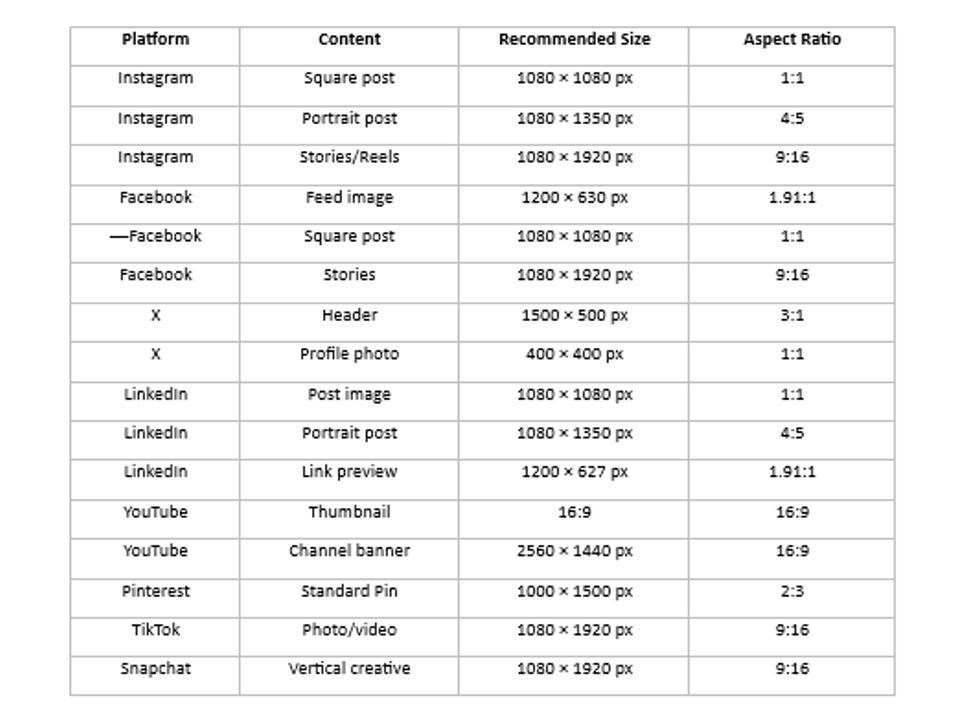
Quick Social Media Image Size Cheat Sheet
Before getting into the details, here's a quick reference for some of the most commonly used social media formats:
Important: Social platforms regularly change their image specifications. Treat these dimensions as practical recommendations rather than permanent rules, and check the platform's official documentation when preparing important campaigns.
What Is an Image Aspect Ratio?
An aspect ratio describes the proportional relationship between the width and height of an image. It is normally written using two numbers separated by a colon.
For example:
1:1 = square
4:5 = portrait
16:9 = widescreen
9:16 = vertical
2:3 = tall portrait
3:1 = wide banner
An aspect ratio describes the shape of an image, not necessarily its quality. For example, these two images have the same aspect ratio:
500 × 500 pixels
2000 × 2000 pixels
Both are 1:1, but the second image contains significantly more pixels and can generally be displayed much larger while retaining detail.
Why Does Aspect Ratio Matter?
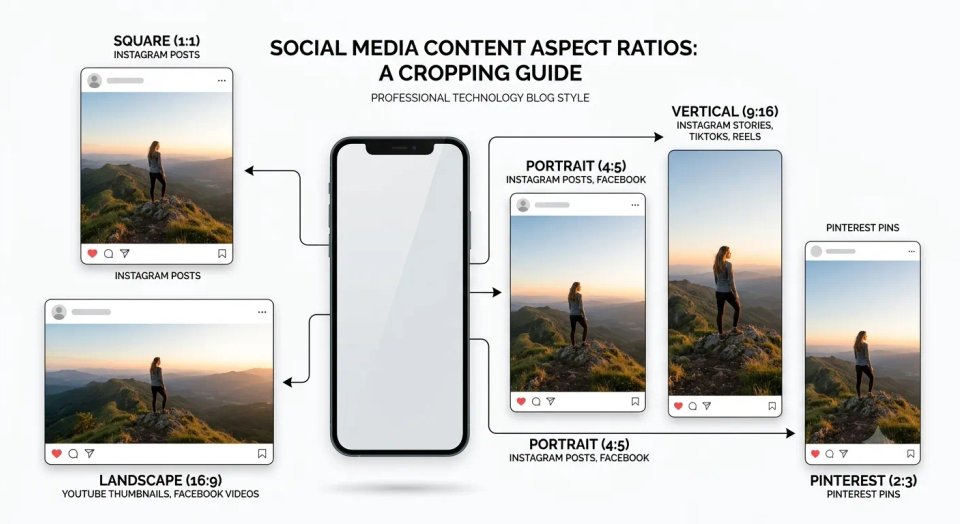
Social media platforms use different layouts and screen formats. If you upload an image with an unsuitable aspect ratio, the platform may:
💖
Enjoyed this article? Share it with others
Help fellow designers, sellers, and creators discover this guide.
Written and peer-reviewed by the RemoveBgNow team. We test and evaluate neural matting networks, e-commerce white background compliance, and high-resolution photo optimization.
This is particularly important when your design contains faces, products, logos, or text. Imagine creating a promotional graphic with your product name at the bottom edge. If the platform crops that area, your message could disappear completely.
Aspect Ratio vs. Resolution: What's the Difference?
These two terms are often confused, but they describe different things.
Aspect Ratio = Shape
Aspect ratio tells you the relationship between width and height.
For example: 1080 × 1350 = 4:5
The image is taller than it is wide.
Resolution = Pixel Dimensions
Resolution usually refers to the number of pixels in an image.
For example: 1080 × 1350 pixels
means the image contains 1080 pixels across and 1350 pixels vertically.
A simple way to remember it is:
Aspect ratio determines the shape. Resolution determines the amount of pixel detail available.
You can have a 1:1 image at 300 × 300 pixels or 3000 × 3000 pixels. They have the same shape but very different levels of detail.
What About 72 PPI?
You'll often hear that social media images should be exported at 72 PPI. For normal web and social media publishing, the actual pixel dimensions are much more important than the PPI metadata. A 1080 × 1080 pixel image remains 1080 × 1080 pixels regardless of whether its metadata says 72 PPI, 96 PPI, or another value.
For social media, focus primarily on:
Pixel dimensions
Aspect ratio
Image quality
File format
File size
Facebook Image Sizes and Aspect Ratios.
Facebook supports many different types of visual content, so there isn't one universal Facebook image size.
Facebook Profile Picture
A square image works best for profile pictures.
Recommended working size: 1080 × 1080 px or another high-resolution square source. Remember that your profile picture is displayed inside a circular frame in many places, so keep faces, logos, and important details near the center.
Facebook Feed Images
For feed graphics, commonly useful formats include:
Landscape
1200 × 630 px & Aspect ratio: 1.91:1
This format is particularly useful for link-style graphics and social sharing images.
Square
1080 × 1080 px & Aspect ratio: 1:1
Square images are easy to repurpose across several platforms.
Portrait
1080 × 1350 px & Aspect ratio: 4:5
Portrait images can occupy more vertical space on mobile screens.
Facebook Stories
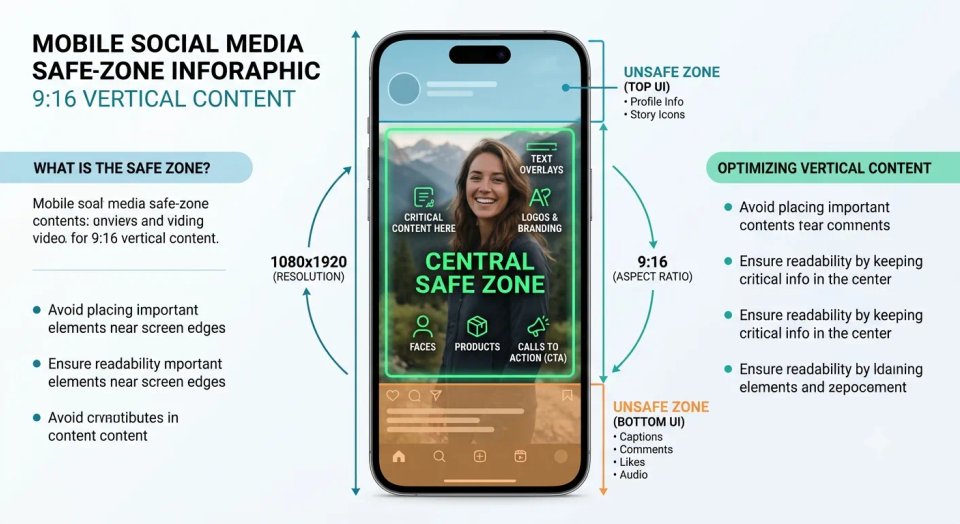
1080 × 1920 px & Aspect ratio: 9:16
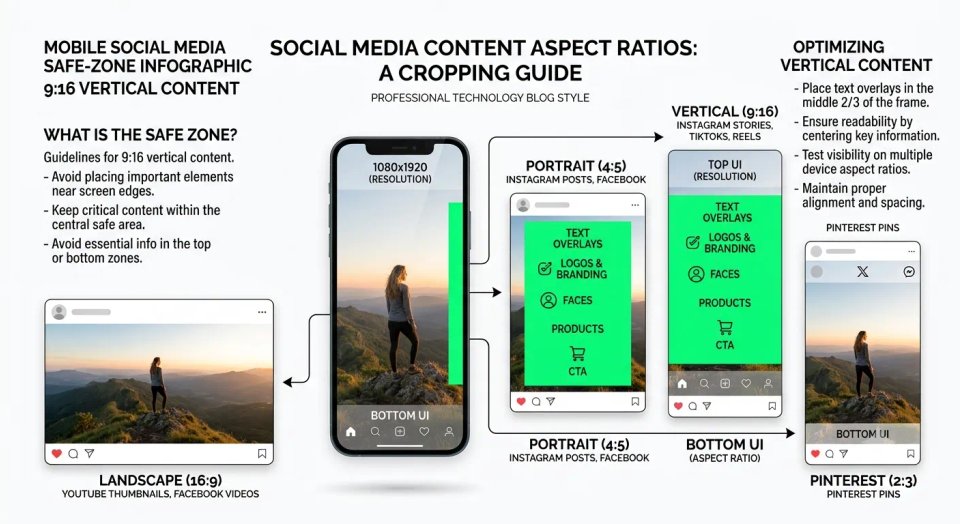
Keep important text, logos, and faces away from the extreme top and bottom areas because interface elements can overlap the creative.
Instagram Image Sizes and Aspect Ratios
Instagram is heavily visual, making image dimensions especially important.
Instagram Feed Posts
Instagram supports several useful formats.
Square
1080 × 1080 px & Aspect ratio: 1:1
The classic Instagram format remains useful for product graphics, quotes, announcements, and carousel designs.
Portrait
1080 × 1350 px & Aspect ratio: 4:5
This is one of the most useful formats for Instagram feed content because it occupies substantial vertical space without requiring a full-screen 9:16 canvas.
Landscape
A landscape format around 1.91:1 can also be used where appropriate.
The important thing is to preview your composition before publishing so that important details aren't unexpectedly cropped.
Instagram Stories and Reels
1080 × 1920 px & Aspect ratio: 9:16
This is the standard full-screen vertical format. Keep important elements away from the very top and bottom because Instagram's interface can cover parts of the creative.
Instagram Profile Picture
Use a high-quality square source image. Your profile picture is displayed as a circle, so keep the main subject or logo centered and leave sufficient space around it.
X (Twitter) Image Sizes and Aspect Ratios
X, formerly known as Twitter, also uses different dimensions for profile and content images.
X Profile Photo
Recommended: 400 × 400 px
Aspect ratio: 1:1
X recommends 400 × 400 pixels for profile photos. Because the image is displayed as a circle, avoid placing important details close to the corners.
X Header Image
Recommended: 1500 × 500 px & Aspect ratio: 3:1
X officially recommends 1500 × 500 pixels for header images. X also notes that portions of the header can be cropped depending on the display environment. Therefore, keep logos, text, and other important information away from the edges.
X Feed Images
For normal posts, use a landscape or square composition depending on the content. A 16:9 design is particularly useful when you want a wide visual presentation, while square images are convenient when repurposing content.
LinkedIn Image Sizes and Aspect Ratios
LinkedIn is particularly important for businesses, freelancers, professionals, recruiters, and personal brands. LinkedIn currently supports a range of image aspect ratios for regular photo posts, from 3:1 to 4:5, and recommends an image width of around 1080 pixels for strong quality.
LinkedIn Profile Picture
Recommended: 400 × 400 px
Use a square, high-quality professional headshot or logo.
LinkedIn Profile Background Image
A commonly used profile background size is:
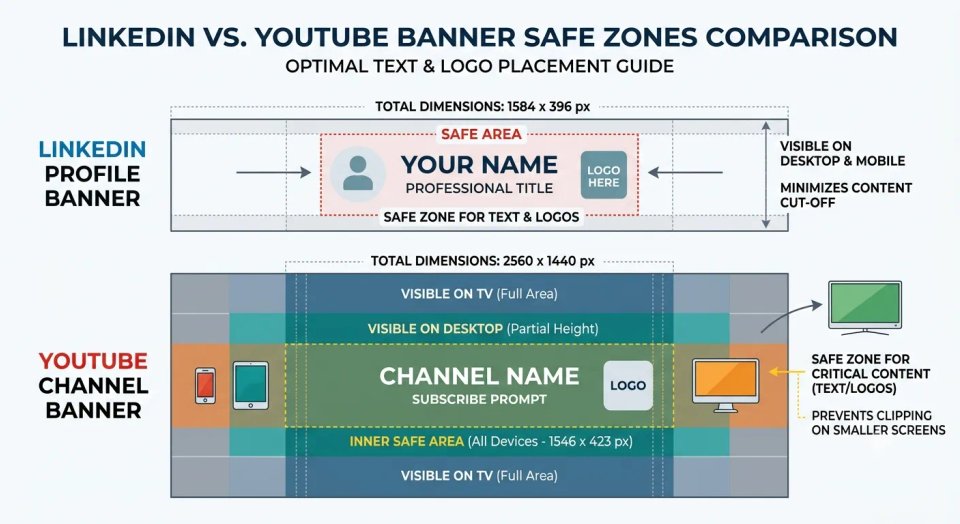
1584 × 396 px & Aspect ratio: 4:1
Keep important information toward the center because the image can appear differently across devices.
LinkedIn Company Page Images
LinkedIn's current Page specifications differ from many older image-size guides found online. For example, LinkedIn currently recommends 4200 × 700 px for a Page cover image and 400 × 400 px for a Page logo. This is a good example of why you should periodically update old social media size guides.
LinkedIn Post Images
LinkedIn supports image posts across a broad range of ratios. Useful working formats include:
1080 × 1080 px — 1:1
1080 × 1350 px — 4:5
1200 × 627 px — 1.91:1 for link previews
LinkedIn states that uploaded photos can range from 3:1 to 4:5, with 1080 pixels recommended for better quality.
YouTube Image Sizes and Aspect Ratios
YouTube uses a combination of widescreen video thumbnails, channel banners, and square profile imagery.
YouTube Thumbnails
YouTube recommends a 16:9 aspect ratio for video thumbnails. YouTube's current Help documentation recommends high-resolution thumbnails and notes that 16:9 is the most commonly used ratio for YouTube players and previews. A practical working size is:
1280 × 720 px
For creators working with high-resolution source graphics, YouTube currently also recommends a thumbnail resolution of 3840 × 2160 px, with a minimum width of 640 pixels.
YouTube Channel Banner
YouTube recommends:
2560 × 1440 px & Aspect ratio: 16:9
YouTube also specifies a central safe area for text and logos. At the minimum upload dimension, the safe area is 1235 × 338 pixels. This is extremely important because channel banners are displayed differently on televisions, desktops, tablets, and phones.
YouTube Profile Picture
Use a square image. A high-resolution logo or portrait gives you flexibility when the image is displayed at smaller sizes.
Pinterest Image Sizes and Aspect Ratios
Pinterest is different from many other social networks because vertical content is particularly important.
Standard Pinterest Pin
1000 × 1500 px & Aspect ratio: 2:3
Pinterest's own business documentation recommends the 2:3 ratio for standard image Pins. It also warns that images with a ratio greater than 2:3 may be cut off in feeds. Pinterest's current creation tools support several ratios, including 9:16, 2:3, 3:4, 4:5, and 1:1.
Why 2:3 Works Well on Pinterest
A vertical canvas gives you room for:
Product photography
Headlines
Step-by-step instructions
Infographics
Branding
Calls to action
However, avoid filling every available pixel with text. Your Pin should remain easy to understand at a glance.
TikTok Image and Video Sizes
TikTok is strongly associated with full-screen vertical content.
This format fills the typical smartphone screen and is also useful when creating TikTok photo posts.
TikTok Photo Posts
When creating a photo carousel, a vertical 9:16 canvas is a practical choice when you want the images to occupy the full mobile screen.
Keep Important Content Away From the UI
TikTok places interface controls around the video.
Therefore:
Don't place important text at the bottom.
Don't put logos directly against the edges.
Keep headlines in a comfortable central area.
Preview the final design on a phone.
Snapchat Image Sizes and Aspect Ratios
Snapchat is also built around vertical mobile content. A practical format for vertical creative is:
1080 × 1920 px & Aspect ratio: 9:16
This format works well for vertical Stories and many advertising creatives. As with TikTok and Instagram Stories, keep important information away from interface areas.
Common Image Size Mistakes
Even experienced content creators can make mistakes when preparing social media graphics.
Here are some of the most common ones.
1. Using One Image Size Everywhere
Creating one 1080 × 1080 image and uploading it everywhere may seem convenient, but it isn't always the best solution.
Different platforms use different layouts.
Instead, create a master design and prepare platform-specific versions.
2. Putting Text Too Close to the Edges
Your design may look perfect in your editor but get cropped after uploading.
Always leave breathing room around:
Headlines
Logos
Faces
Product names
Calls to action
3. Starting With a Low-Resolution Image
If the original photo is already blurry or heavily compressed, resizing it to a larger canvas won't magically restore missing detail.
For example, stretching a 400 × 400 pixel image to 2000 × 2000 pixels can make pixelation much more obvious. If you have a small but important image, an image upscaling tool can sometimes help produce a better working source before you resize it for social media.
4. Ignoring the Background
The subject may be sharp, but a distracting background can make the entire graphic look unfinished. This is especially noticeable in:
Product posts
Profile photos
YouTube thumbnails
Promotional graphics
Instagram posts
LinkedIn headshots
A clean background can make the main subject easier to position and reuse.
5. Forgetting Transparency
Sometimes you don't want a rectangular photograph, You want the subject itself.
For example, imagine creating a YouTube thumbnail featuring a person cut out from the original photograph. A transparent PNG allows you to place that person over a completely different background. This is where background removal becomes useful.
How RemoveBgNow Can Help Prepare Images for Social Media
When you're creating content for multiple social platforms, background removal can be a surprisingly useful part of the workflow.
RemoveBgNow can automatically remove the background from portraits, products, pets, logos, and other subjects and export the result as a transparent PNG. The website currently supports JPG, PNG, WebP, and GIF uploads.
You don't have to use background removal for every social media image. But when your design requires a clean subject cutout, it can save a lot of manual editing.
Example: Creating an Instagram Product Post
Suppose you have a product photograph with a messy room in the background. Instead of placing the original photograph directly into your Instagram design:
Upload the product image to RemoveBgNow.
Remove the background.
Download the transparent PNG.
Create a 1080 × 1350 px Instagram canvas.
Place the product cutout on your new background.
Add your brand colors, text, and call to action.
Export the final image.
This gives you much more control over the composition.
Example: Creating a YouTube Thumbnail
You can use the same approach for YouTube.
For example:
Original portrait → background removal → transparent person cutout → 1280 × 720 thumbnail → new background → text and graphics
This makes it easier to create thumbnails where the subject stands out from the background.
Example: LinkedIn Profile Images
A distracting background can make an otherwise good professional photograph look less polished. You can remove the background from a portrait and then place the subject against a simple, professional background before preparing the final profile image.
Example: Pinterest Product Pins
For product-based content, transparent cutouts make it easier to create multiple Pin designs from the same source image.
One product photograph can become:
A product announcement
A promotional Pin
A tutorial graphic
A comparison graphic
A seasonal campaign
The same cutout can be reused without repeatedly masking the original image.
Tips for Optimizing Images for Multiple Platforms
Creating separate versions of every image doesn't have to be difficult. A simple workflow can save considerable time.
1. Start With the Highest-Quality Original
Always keep your original photograph. Don't repeatedly edit and export the same compressed JPEG.
Instead:
Original → master design → platform-specific exports
This helps preserve quality.
2. Create a Master Subject Cutout
If you're working with products, people, or other objects, create a clean transparent cutout first. That cutout can then be placed into different designs.
For example:
Transparent product → Instagram 4:5
Transparent product → Pinterest 2:3
Transparent product → Facebook 1:1
Transparent product → YouTube 16:9
This is much easier than removing the background separately for every design.
3. Design Around the Platform's Shape
Don't simply resize an image and assume it will look good. Reposition the subject when necessary. A product that looks perfectly centered in a square image may need to move upward or sideways in a 9:16 design.
4. Keep Text Large Enough
Remember that most social content is viewed on smartphones. Small text that looks readable on a desktop monitor may become almost impossible to read on a phone.
5. Check the Final Image on Mobile
Before publishing, open the exported image on your phone.
Check:
Is the headline readable?
Is the subject fully visible?
Is the logo visible?
Are any important elements cropped?
Does the image look sharp?
Is the file size reasonable?
6. Don't Overcompress
Compression can reduce file size, but aggressive compression can introduce:
Blurry text
Blocky gradients
JPEG artifacts
Soft edges
Loss of fine details
The goal isn't the smallest possible file. The goal is the best balance between quality and file size.
Which Image Format Should You Use?
Aspect ratio and resolution aren't the only things that matter. The file format also affects the final result.
JPEG
JPEG is usually a good choice for:
Photographs
Landscapes
Portraits
Product photography
It offers relatively small file sizes but uses lossy compression.
PNG
PNG is particularly useful when you need:
Transparency
Logos
Graphics
Text-heavy designs
Clean edges
For example, if you've removed a background from a product photograph and want to place the product on different backgrounds, a transparent PNG is useful.
WebP
WebP can provide efficient compression and is particularly useful for websites. For website content, choosing between JPEG, PNG, and WebP should depend on whether you need transparency, the type of image, browser support, and the desired file size. For social media uploads, however, always follow the platform's currently supported formats.
Best Tools for Resizing and Preparing Social Media Images
You don't necessarily need expensive professional software for every image. Different tools are useful for different jobs.
Canva
Useful for quickly creating social media designs using predefined dimensions and templates.
Adobe Photoshop
Useful when you need advanced control over:
Layers
Masks
Color
Retouching
Precise resizing
Adobe Express
Useful for quick browser-based social media designs.
Squoosh
Useful when you need to experiment with image compression and modern formats.
RemoveBgNow
Useful when the problem isn't simply resizing but isolating the subject from its background.
For example, if you're preparing a product image for Instagram, Pinterest, Facebook, or a YouTube thumbnail, you can remove the original background first and then place the transparent subject into the correct canvas.
A Simple Social Media Image Workflow, if you regularly create content for several platforms, use this workflow:
Step 1: Start With the Original
Keep the highest-quality version of your photograph.
Step 2: Clean the Subject
If the background is distracting or you need a cutout, remove it before designing.
Step 3: Create Your Master Design
Choose your brand colors, typography, photography style, and layout.
Step 4: Create Platform Versions
Prepare versions for:
Instagram
Facebook
LinkedIn
X
Pinterest
YouTube
TikTok
Step 5: Check Safe Zones
Move text and important elements away from areas likely to be covered or cropped.
Step 6: Export
Choose the appropriate format and quality.
Step 7: Preview on Mobile
Never skip the final preview.
What Is the Most Universal Social Media Image Size?
There isn't a single image size that is perfect for every platform. However, 1080 × 1080 px (1:1) is one of the most versatile starting points because square designs can be reused across many social networks. But "universal" doesn't mean "optimal."
If you're specifically creating:
Instagram feed content → consider 4:5
Instagram Stories/Reels → 9:16
TikTok → 9:16
Pinterest → 2:3
YouTube thumbnails → 16:9
X header → 3:1
LinkedIn link preview → 1.91:1
Creating the correct version for the destination will generally give you more control than forcing one image into every platform.
Final Checklist Before Publishing Any Social Media Image
Before pressing Publish, ask yourself:
Is the aspect ratio correct?
Is the image large enough?
Is the main subject clearly visible?
Is important text inside the safe area?
Does the image look sharp on a phone?
Is the file format appropriate?
Is the file size reasonable?
Have I checked the image on both desktop and mobile?
Does the design match my brand?
Have I avoided unnecessary compression?
If the answer to all of these is yes, your image is much more likely to look the way you intended.
Conclusion
Understanding image aspect ratios and resolutions doesn't have to be complicated. The most important thing to remember is that aspect ratio controls the shape of your image, while pixel dimensions determine how much image detail is available.
Once you understand that difference, preparing content for different platforms becomes much easier. Instead of creating one image and uploading it everywhere, start with a high-quality original, create a clean master asset, and then prepare versions specifically for each platform.
For images that need a clean subject cutout, a background remover can also simplify the workflow. Tools such as RemoveBgNow can help turn ordinary photographs into transparent PNG assets that can then be reused across different social media designs.
Most importantly, don't treat image dimensions as permanent rules. Social platforms change their layouts and specifications regularly. For important campaigns, always verify the latest requirements before publishing. A correctly sized image won't guarantee viral content—but it removes one unnecessary problem between your content and your audience.
Frequently Asked Questions
Q. What is the best image size for social media?
There is no single best size for every platform. 1080 × 1080 px is a versatile square format, while 1080 × 1350 px works well for portrait social posts and 1080 × 1920 px is widely used for full-screen vertical content.
Q. What is the most common social media aspect ratio?
Common ratios include:
1:1 — square
4:5 — portrait
16:9 — landscape
9:16 — vertical
2:3 — Pinterest-style portrait
1.91:1 — link and landscape-style social graphics
Q. Is 1080 × 1080 better than 1080 × 1350?
Not necessarily.
They serve different purposes.
1080 × 1080 is square and highly versatile, while 1080 × 1350 is a 4:5 portrait format that can occupy more vertical space in feeds.
Choose based on the platform and content rather than assuming one size is always better.
Q. What image size should I use for Instagram?
For Instagram, common working sizes include:
1080 × 1080 px for square posts, 1080 × 1350 px for portrait posts, and 1080 × 1920 px for Stories and Reels.
Q. What size should a YouTube thumbnail be?
YouTube thumbnails use a 16:9 aspect ratio. A practical working size is 1280 × 720 px, while YouTube's current documentation also recommends high-resolution thumbnails up to 3840 × 2160 px.
Q. What size should a Pinterest Pin be?
Pinterest recommends a 2:3 aspect ratio for standard image Pins, with 1000 × 1500 px being a common recommended size.
Q. What is the best format for transparent images?
PNG is a common choice when you need transparency.
For example, a background-removed product can be exported as a transparent PNG and placed over different backgrounds.
Q. Can I use the same image on every social media platform?
You can, but you shouldn't always use exactly the same crop.
The same source image can be adapted into different aspect ratios for different platforms. This gives you greater control over cropping, text placement, and the overall composition.
Q. Can I remove an image background before resizing it for social media?
Yes.
In many workflows, removing the background first can actually make the design process easier. You can create a transparent subject cutout and then place it into different canvas sizes.
You can use RemoveBgNow for this type of workflow.
Q. Does increasing image resolution improve a blurry image?
Simply increasing the pixel dimensions does not restore information that was never captured.
However, AI image upscaling can sometimes reconstruct additional detail and produce a more useful high-resolution version. The quality of the result depends heavily on the original image.
Q. Should I use 72 PPI for social media?
PPI metadata is not the main factor determining how a social media image looks on screen.
For digital publishing, focus on the actual pixel dimensions, aspect ratio, image quality, compression, and file format.
Q. How often should I check social media image specifications?
Check them periodically, especially before launching an important campaign.
Social platforms can change layouts, supported formats, safe zones, and recommended dimensions over time. Older blog posts and image-size guides can therefore become outdated surprisingly quickly.