DPI vs PPI: The Real Difference (And Why It Actually Matters When You Print Your Photos)
tutorialtips tricks⚡ 11 min read
RB
RemoveBgNow Vision Editorial
11 min read2,018 words
Wait, aren’t DPI and PPI the same thing?
Nope — and this mix-up is probably the single biggest reason people end up disappointed with their prints.
Here’s the short version:
PPI (Pixels Per Inch) describes your digital image — how many pixels are packed into every inch of it.
DPI (Dots Per Inch) describes your printer — how many tiny dots of ink it physically places on paper to recreate those pixels
One lives inside your file. The other lives inside your printer. They’re related, but they are not interchangeable, even though almost everyone — including big software companies for years — has used the terms as if they were the same thing.
Let’s break both of them down properly.
What PPI actually means
PPI is a property of your image file. It tells you how densely the pixels in your photo are packed together once you decide to print it at a certain size.
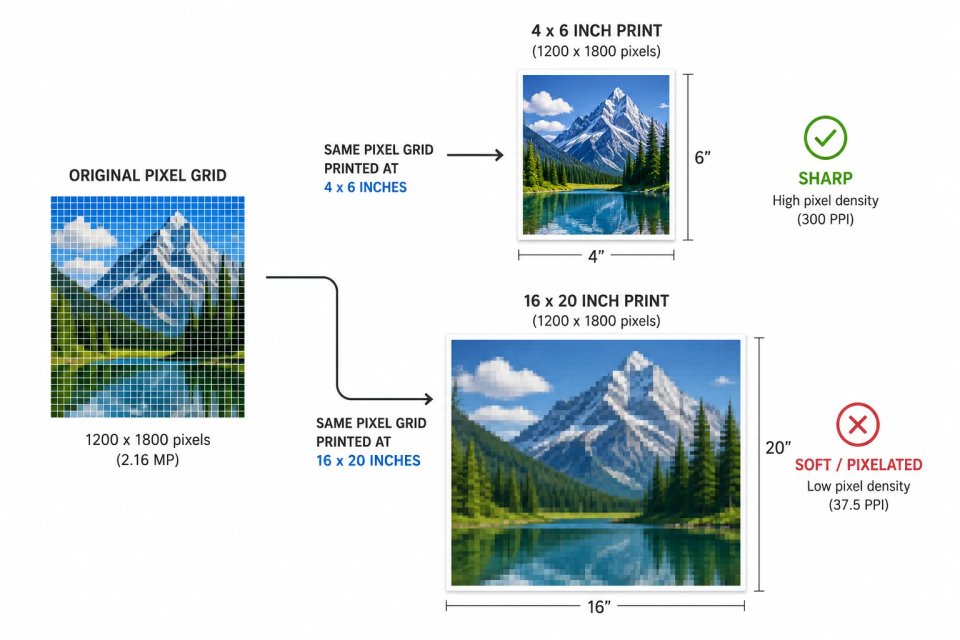
Here’s the part that trips people up: the number of pixels in your photo never changes just because you change the PPI setting. If your camera captured a photo that’s 3000 pixels wide by 4500 pixels tall, that’s it — that’s all the pixel data you have. Changing the PPI number in Photoshop or any other editor doesn’t add a single new pixel. All it does is tell the software (and eventually the printer) how large or small to physically make that fixed grid of pixels on paper.
So the math is simple:
Print size (in inches) = pixel dimensions ÷ PPI
A 3000 × 4500 pixel image printed at 300 PPI comes out to a 10 × 15 inch print. Print that exact same file at 150 PPI instead, and it becomes a 20 × 30 inch print — twice as big, but with the same total amount of detail spread over a larger area, which is why it looks softer up close.h of them down properly.
There's actually a well-known real-world demonstration of this. Photographers have exported the exact same image at 1 PPI and at 5,000 PPI — same pixel dimensions both times — and displayed them side by side on screen. They look 100% identical, because PPI only becomes visible when you print. On a screen, your device just renders every pixel it's given; it doesn't care what PPI number is stamped in the file's metadata.
What DPI actually means?
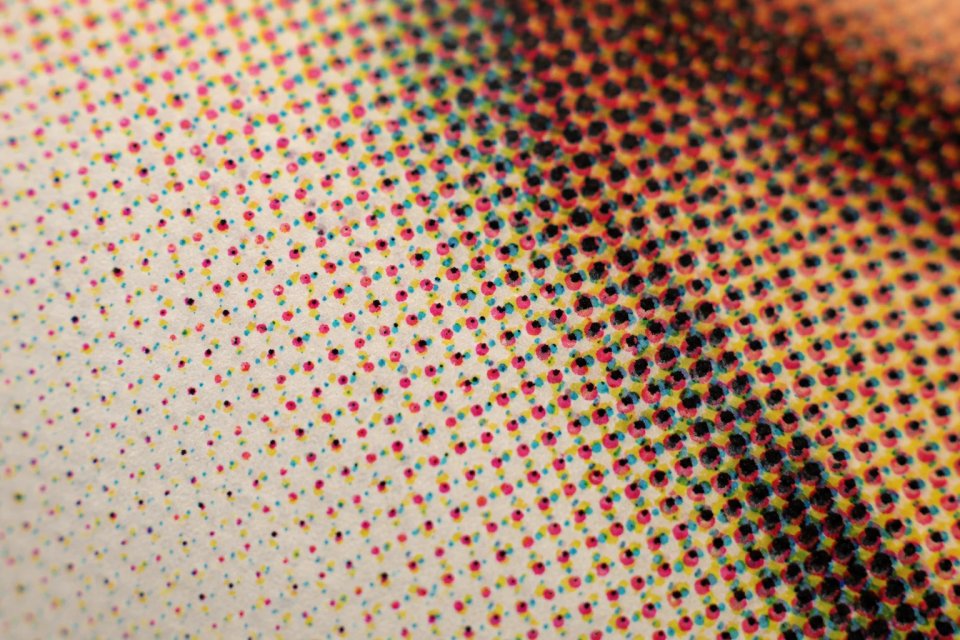
DPI belongs entirely to the printer, not your photo file. A printer doesn't understand “pixels" the way a screen does. It can only lay down physical dots of ink — usually in four to six colors (cyan, magenta, yellow, black, and sometimes light cyan/light magenta for photo printers). Since a printer can't mix infinite colors the way a screen pixel can, it has to blend and layer multiple tiny ink dots just to approximate the color of a single pixel from your image. DPI is simply how many of those ink dots the printer can squeeze into one inch.This is also why the DPI numbers you see printed on a printer's box — things like “5760 × 1440 DPI” — look absurdly high compared to the 300 PPI you’re told to use for your photo files. That printer spec isn’t describing image resolution the way you’d think. It’s describing how finely the print head’s motor can position ink droplets, which is a completely different measurement. In practice, most consumer photo printers have a genuinely useful working resolution much lower than their marketing spec — historically, Epson inkjets have used a native resolution around 360 DPI, while Canon and HP printers have generally worked around 300 DPI. Everything above that is the printer using extra dots to smooth out color transitions and tones, not to add sharper detail.
💖
Enjoyed this article? Share it with others
Help fellow designers, sellers, and creators discover this guide.
Written and peer-reviewed by the RemoveBgNow team. We test and evaluate neural matting networks, e-commerce white background compliance, and high-resolution photo optimization.
Mostly history. For decades, software and printer manufacturers used “DPI" as a catch-all term for basically anything resolution-related, whether it was about a screen, a scanner, or a printed page. Even now, when someone tells you “make sure that photo is 300 DPI," what they usually mean — technically speaking — is “make sure that photo is 300 PPI." The habit stuck around long after the terms should have been separated, and it's honestly still common in everyday conversation, even among professionals.
So what PPI should you actually use?
This is the part most guides skip, and it's the part that actually saves you money and disappointment: the “right” PPI depends entirely on how close someone will stand to the print.
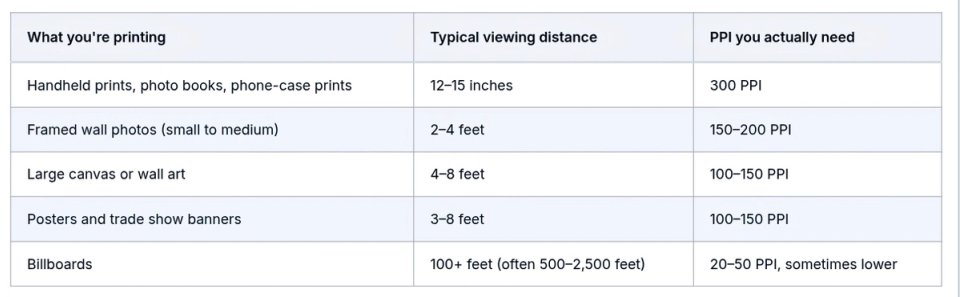
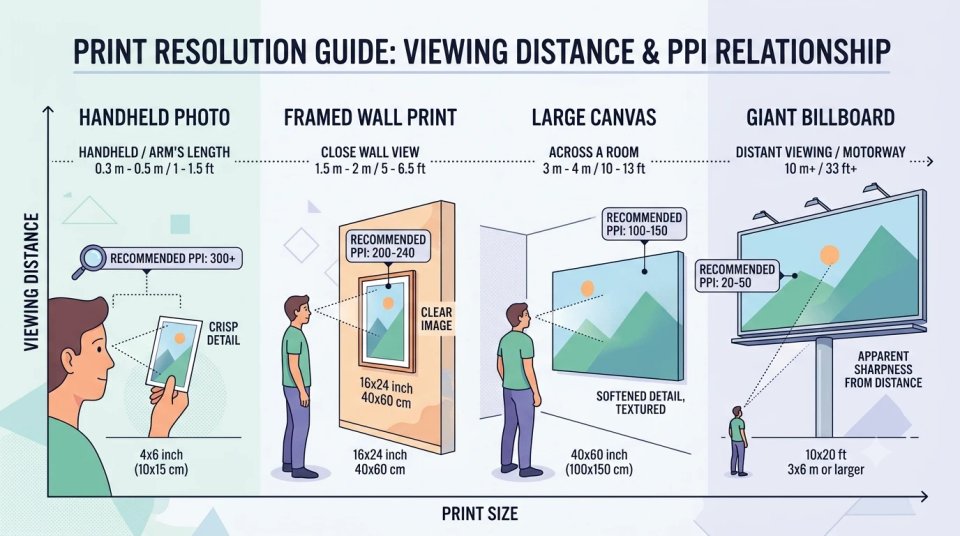
The 300 PPI number you hear quoted everywhere comes from one specific scenario — a print held in your hands, viewed at arm’s length (roughly 12–15 inches away), like a photo book or a magazine page. At that distance, individual pixels become invisible to the human eye at 300 PPI. But most prints aren’t viewed that close.
Here’s a practical breakdown based on real viewing distances:
This isn't just theory — it holds up in real testing. In one blind comparison, photographers were shown two versions of the same large print, one at 110 PPI and one at 208 PPI, both sized at 33 × 20 inches. Most couldn't tell them apart, even standing just one foot away. Meanwhile, billboards are viewed from so far away that beyond roughly 650 feet, the human eye physically can't resolve more than about 1 pixel per inch anyway — which is exactly why billboard printers get away with such low resolution files.
The takeaway: if you’re printing something that will hang on a wall and be viewed from a few feet away, you genuinely do not need to chase 300 PPI. It’s a waste of file size and, in some cases, an unnecessary and expensive step of upscaling an image that didn’t need it.
If you sell prints or merchandise, resolution requirements are non-negotiable
If you print through a print-on-demand service, they usually set a hard minimum. For example, Printful specifies at least 150 DPI for direct-to-garment items like t-shirts, and at least 300 DPI for paper-based products — posters, greeting cards, wall art, and phone cases. Falling below these thresholds typically won't just look soft; some platforms will flag or reject your file outright before it even goes to print.
How to check your photo's actual resolution (no Photoshop needed) You don't need professional software to see whether your image will hold up in print.
On a Mac: Open the image in Preview, go to Tools → Adjust Size, and you'll see the resolution field (often 72 or 300). Just make sure “Resample image" is unchecked if you're only checking — not changing — the file.
On Windows: Right-click the image file, choose Properties, and open the Details tab. You'll find the resolution listed under the “Image" section. One caveat worth knowing: if an image is missing embedded resolution metadata, some software defaults to displaying 72 PPI even when that's not meaningful — so treat this number as a rough guide, not gospel.
On an iPhone: Open the photo in the Photos app, tap the Share icon, then tap the info (“i") button. You'll see the pixel dimensions, though iPhones don't typically show a PPI number directly — you'll need to do the print-size math yourself using the pixel count.
On Android: Open the photo in Google Photos or your Gallery app, tap the three-dot menu, and select Details to see the pixel dimensions.
In Photoshop or GIMP: Go to Image → Image Size to see both the pixel dimensions and the current resolution setting side by side.
Free online tools: If you don't want to open any software, several browser-based image resolution checkers will read a photo's embedded metadata and tell you its pixel dimensions and resolution instantly.
Common mistakes worth avoiding
Cranking up the DPI/PPI number without resampling. If you type “300" into the resolution field without checking “resample,” you haven’t added detail — you’ve just told the software to shrink your print size to make the existing pixels denser. The image itself hasn’t changed at all.
Trusting how a photo looks on your phone screen. This one catches a lot of people off guard. Modern iPhone Retina displays pack around 326 pixels per inch, while a typical desktop monitor sits closer to 96–110 PPI. A photo can look razor-sharp on your phone screen and still be far too low-resolution to print well at a larger size, simply because your screen and a printed page have completely different resolution demands.
Assuming every print needs 300 PPI. As covered above, this is only true for prints viewed up close. Applying it everywhere means bigger files, longer upload times, and sometimes unnecessary upscaling that can actually make an image look worse, not better.
Quick cheat sheet
PPI = pixels packed into your digital file. Matters for printing, doesn't affect how an image looks on a screen.
DPI = physical ink dots your printer lays down. It's a printer property, not a file property.
Print size and PPI are directly linked: more pixels stretched over a bigger print means lower PPI.
The farther away something will be viewed from, the lower the PPI you actually need.
300 PPI is the standard for handheld prints — not a universal rule for everything you print.
Frequently Asked Questions
Q. Is a 72 DPI image always bad for printing?
Not necessarily. A 72 PPI file is genuinely too low if you're printing it at a large size for close viewing — you'll see visible pixelation. But that same file could still work fine for something viewed from several feet away, like a banner, because the required PPI drops as viewing distance increases.
Q. Can I convert a 72 DPI photo to 300 DPI without losing quality?
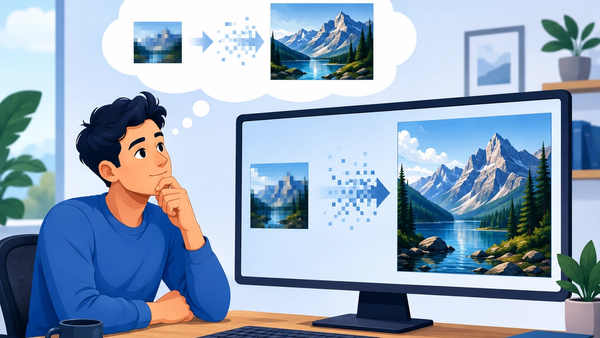
Changing the number itself doesn't lose or gain quality — but if you use “resample" to force more pixels into the file, software has to invent new pixel data using interpolation, which can make the image look soft or artificial rather than genuinely sharper. The real fix is starting with a photo that has enough actual pixels for your intended print size.
Q. Why does my photo look sharp on my screen but blurry when printed?
Screens and printers measure sharpness completely differently. Your screen just displays every pixel it receives, regardless of PPI. A printer needs enough actual pixel data to fill the physical size of the paper at a resolution your eye can't see through. A photo with plenty of pixels for a phone screen can easily fall short once you try to print it large.
Q. Does a higher DPI printer automatically mean better prints?
Not on its own. A high-DPI printer can't add detail that isn't in your original file. Think of it this way: PPI is the quality of your original image, and DPI is your printer's ability to faithfully reproduce it. Both need to be reasonably matched — a great printer can't fix a low-resolution photo, and a low-DPI printer can't fully showcase a high-resolution one.
Q. What PPI should I use for images going on a website or social media?
For screens, PPI as a metadata number is largely irrelevant — what matters is the pixel dimensions (like 1920 × 1080), since your monitor or phone display handles the rest automatically. You don't need to worry about “DPI” for anything that stays digital.
Q. How many megapixels do I need for a large print, like a canvas?
It depends on viewing distance more than raw megapixel count. Because large prints are typically viewed from several feet away, you can get away with a much lower PPI — often 100–150 PPI — which means even a moderately-resolution photo can print beautifully at a large size, as long as no one’s expected to stand a foot away from it.
Understanding DPI and PPI isn’t about memorizing numbers — it’s about matching your file’s resolution to how and where your photo will actually be seen. Get that right, and you’ll stop overpaying for resolution you don’t need, and stop being surprised by prints that don’t look the way you expected.